> ## Documentation Index
> Fetch the complete documentation index at: https://docs.slai.io/llms.txt
> Use this file to discover all available pages before exploring further.
# Connecting S3 Buckets
> Slai comes with several integrations to import data from remote data stores, like S3 buckets. This guide explain how to connect an S3 bucket and use it in your sandbox.
### Connecting an Integration
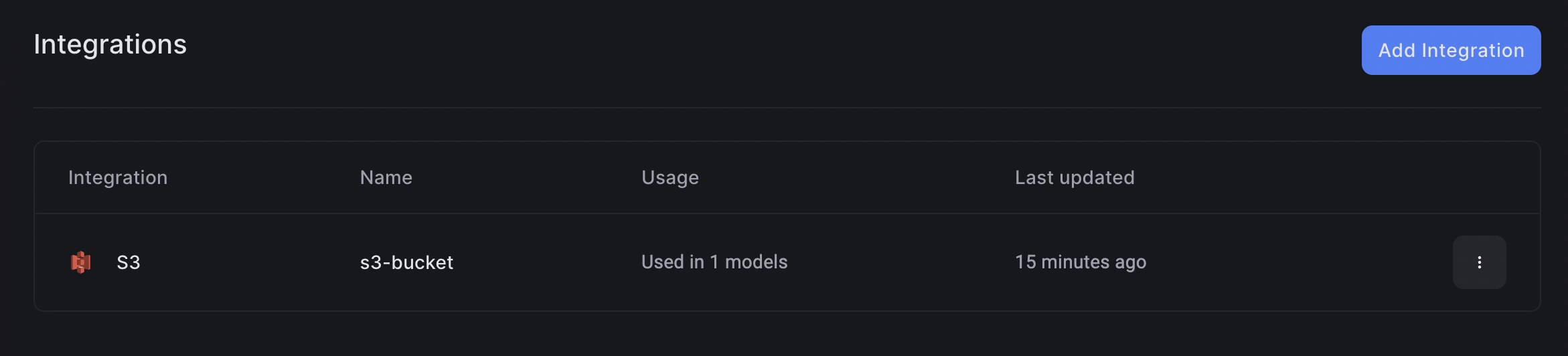
Integrations live at the root level of Slai, which makes them accessible from any sandbox in your account. To create an integration, click the **Integrations** tab on the sidebar [on your dashboard.](https://slai.io/models)
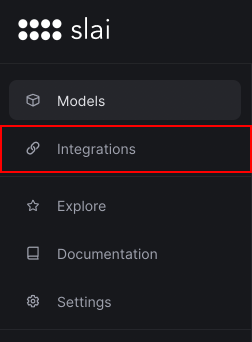 You'll be presented with a list of existing integrations, if any exist. Click **Add Integration** to create a new one.
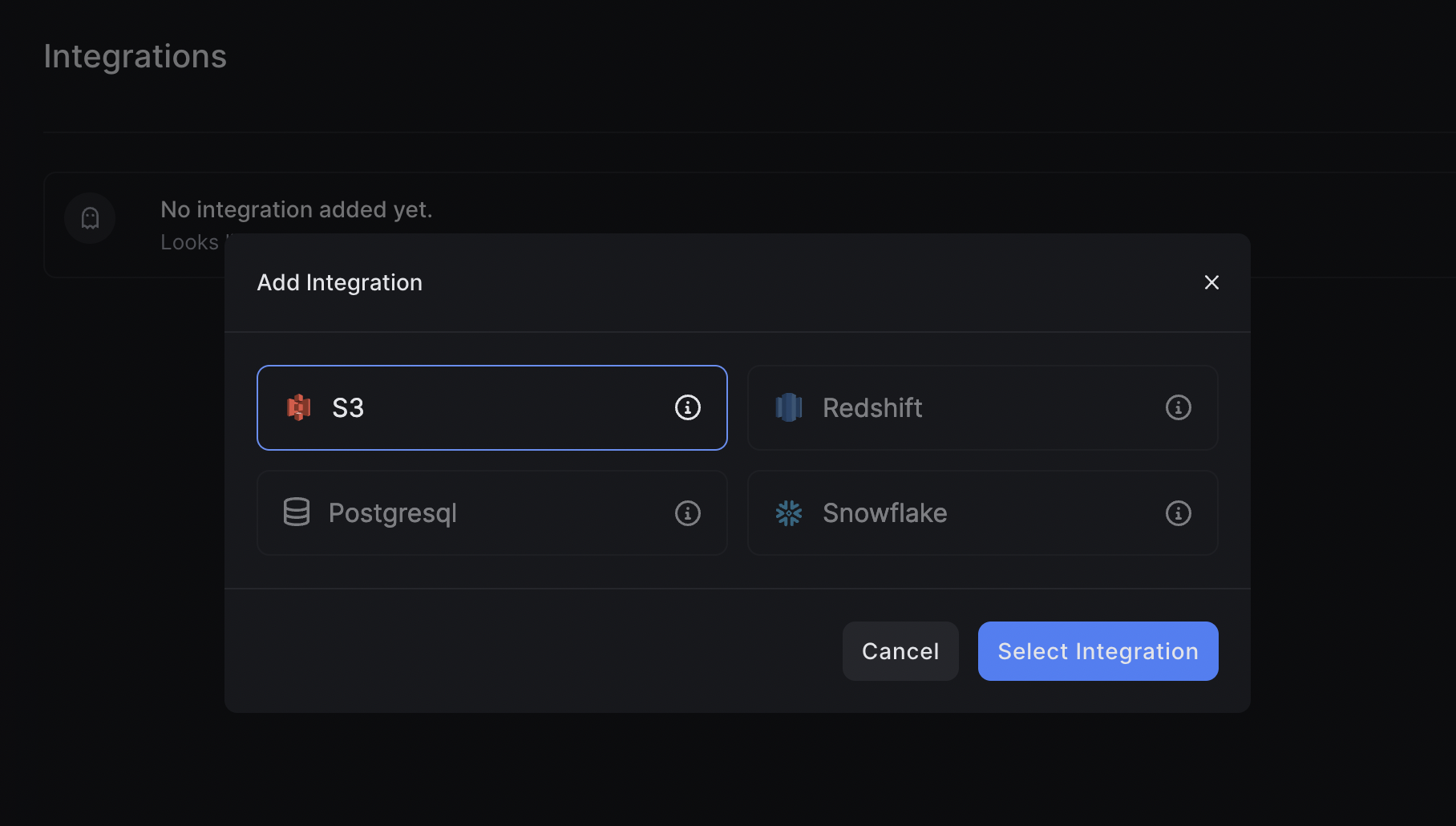 You'll be prompted to enter a name, bucket name, AWS region, access key, and secret access key.
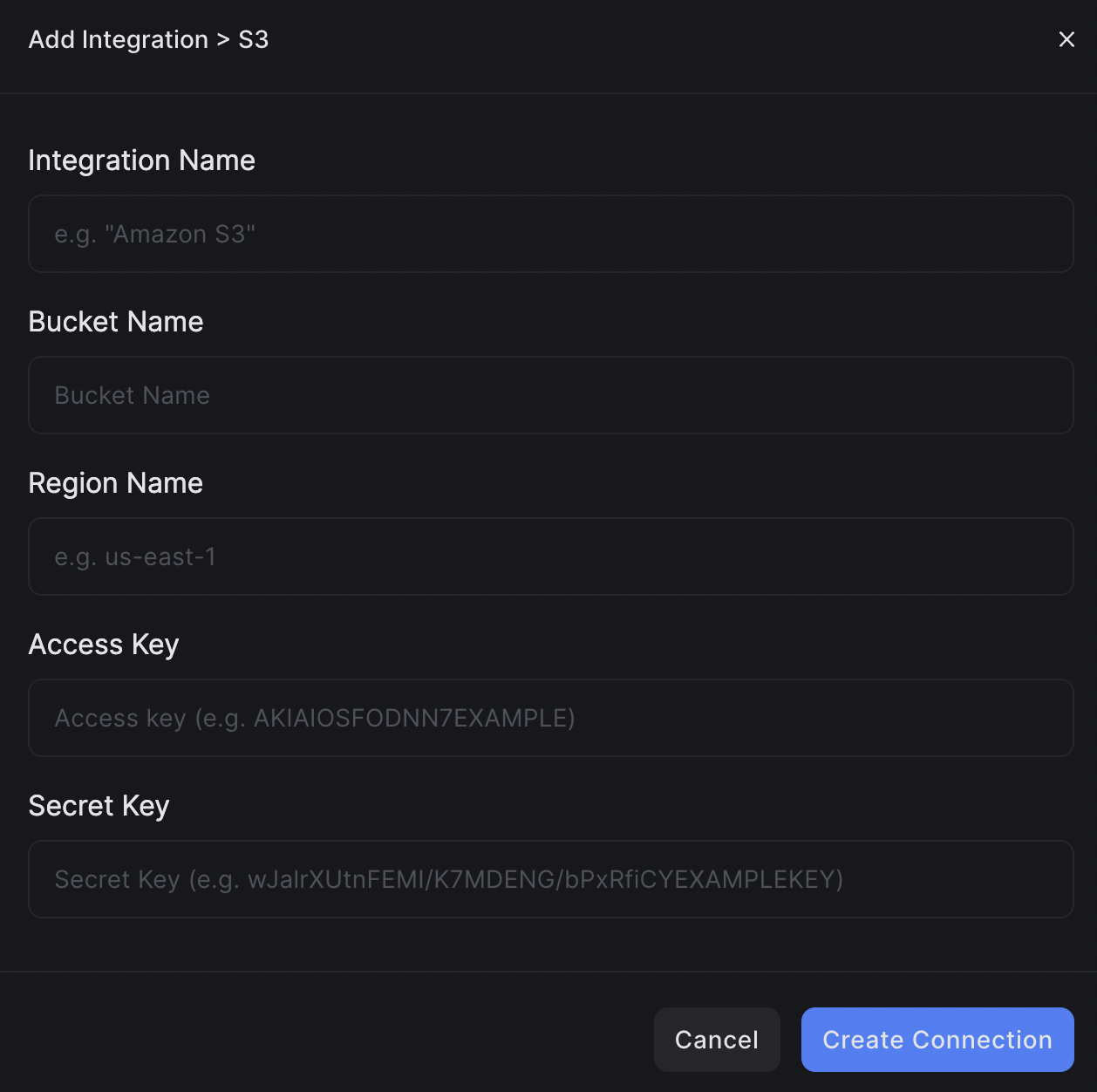 Click **Create Connection**, and you'll see your new integration added to the Integrations list.
 ### Using Bucket Contents
In the **Data Section** of the sandbox, click the **+** icon to create a new datasource. Select **Import from Integration**.
### Using Bucket Contents
In the **Data Section** of the sandbox, click the **+** icon to create a new datasource. Select **Import from Integration**.
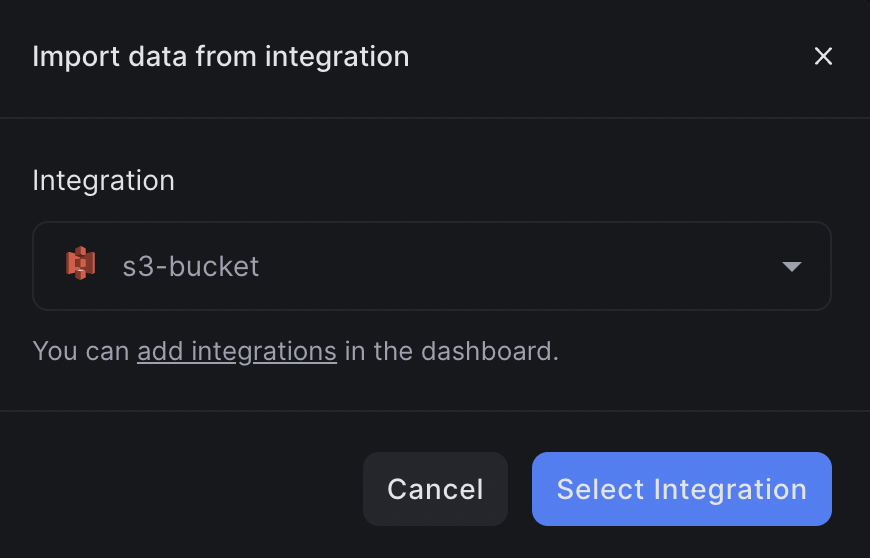
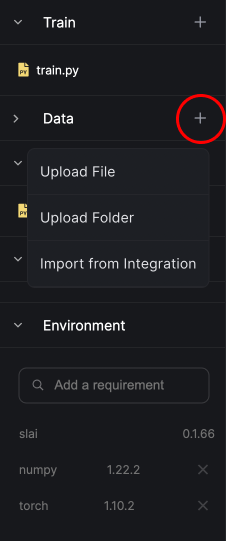 You'll be prompted to select from a list of integrations connected to your account. Let's select the bucket we just created.
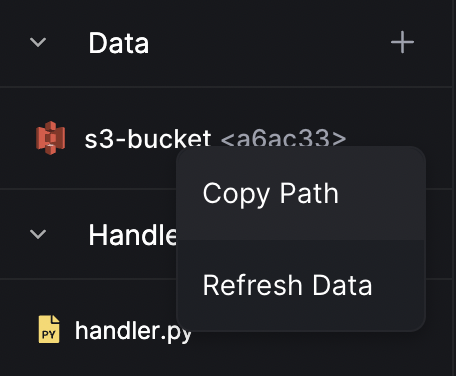
 After selecting the integration, the data will be downloaded to the **Data Section** of the sandbox. You can use the data from your bucket like any ordinary folder or file.
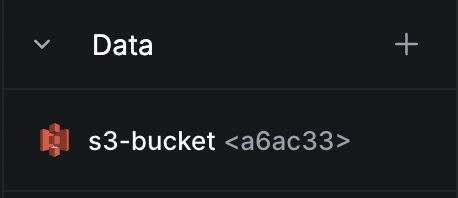 To use the data in your model, click **Copy Path** and paste the path into the sandbox.