> ## Documentation Index
> Fetch the complete documentation index at: https://docs.slai.io/llms.txt
> Use this file to discover all available pages before exploring further.
# Connecting to Google BigQuery
> Slai supports direct integration with Google BigQuery. This guide demonstrates how to retrieve data from BigQuery for use in a Slai Sandbox.
## Connecting an Integration
Let's start by setting up the integration.
Integrations live at the root level of Slai, which makes them accessible from any sandbox in your account. To create an integration, click the **Integrations** tab on the sidebar on [your dashboard](https://slai.io/models).
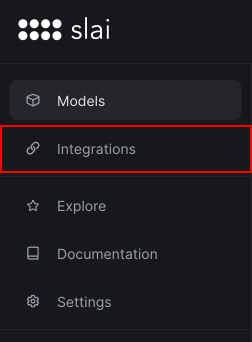 You'll be presented with a list of existing integrations, if any exist. Click **Add Integration** to create a new one.
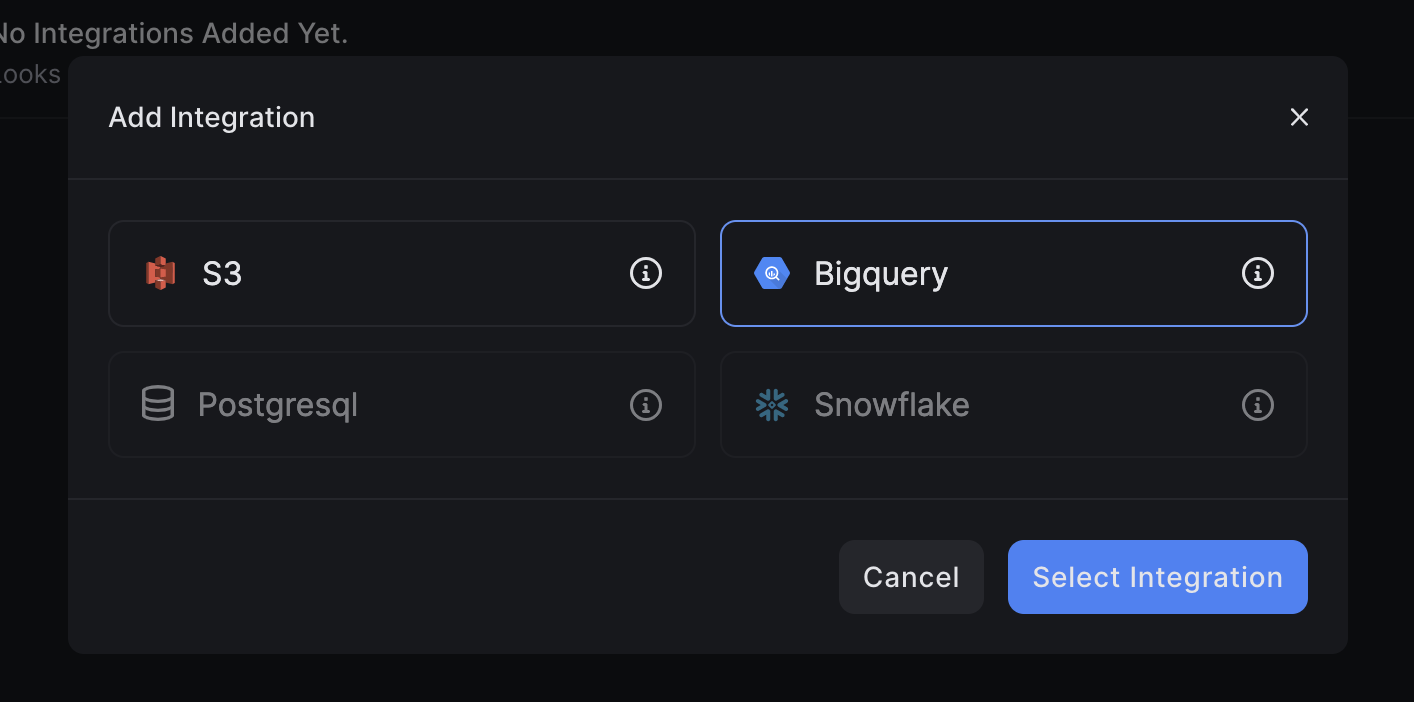 You'll be prompted to enter a **Name** and [Service Account Credentials](https://cloud.google.com/iam/docs/creating-managing-service-accounts) in order to allow our app to query your database.
We recommend creating a new **Service Account** and setting strict **BigQuery** access in your Google Cloud Console.
You'll be prompted to enter a **Name** and [Service Account Credentials](https://cloud.google.com/iam/docs/creating-managing-service-accounts) in order to allow our app to query your database.
We recommend creating a new **Service Account** and setting strict **BigQuery** access in your Google Cloud Console.
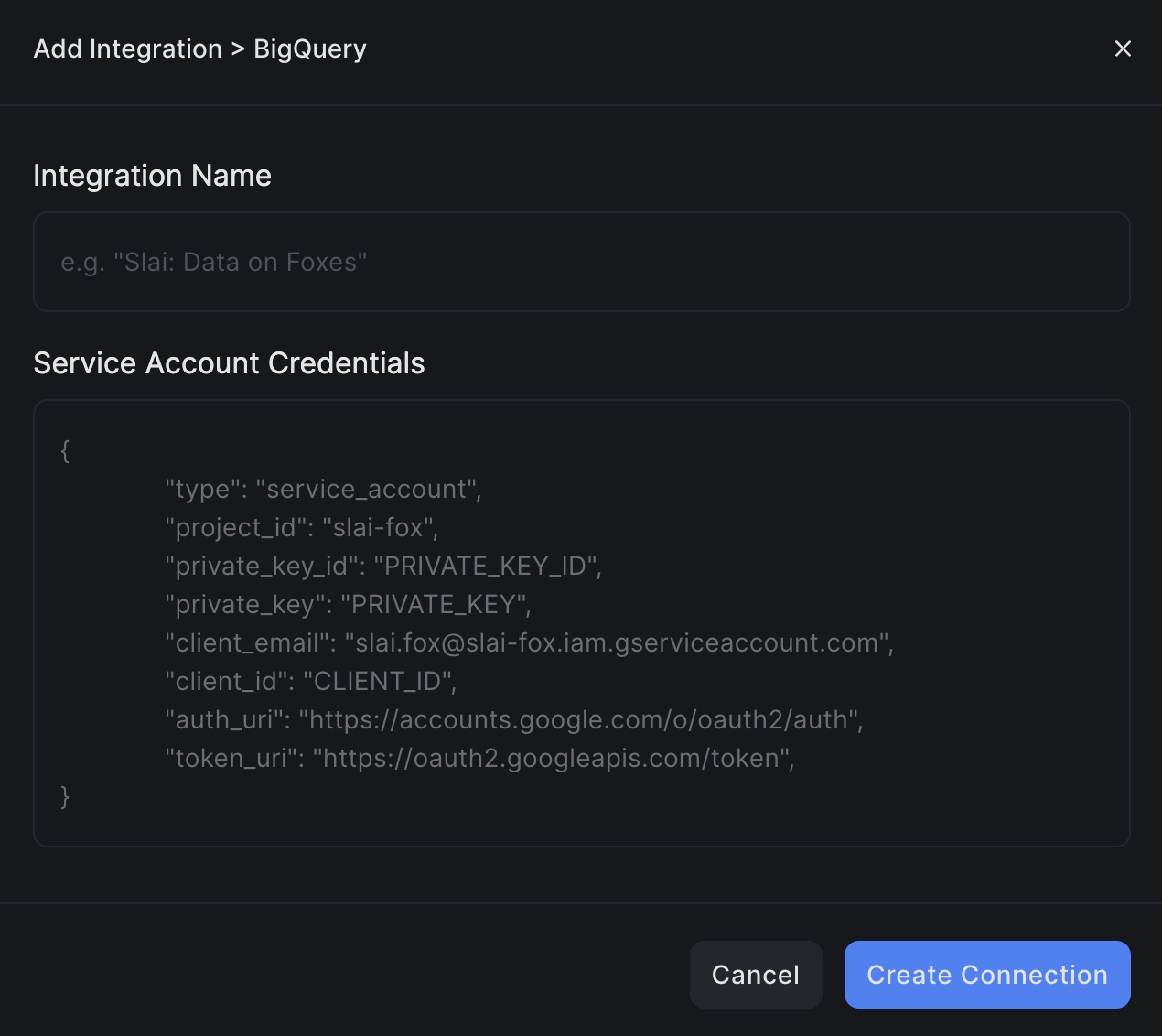 Click **Create Connection** to add the integration to your list
## Creating a query in your sandbox
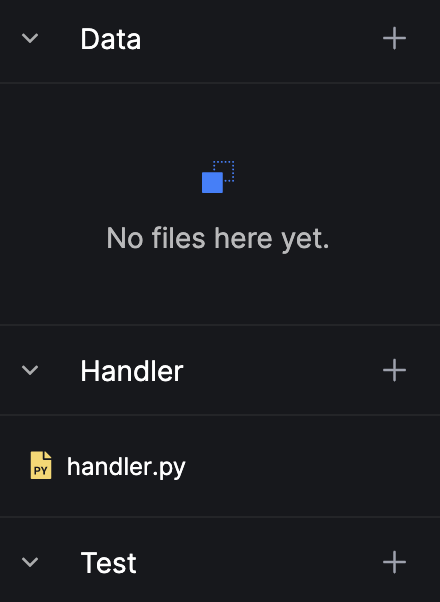
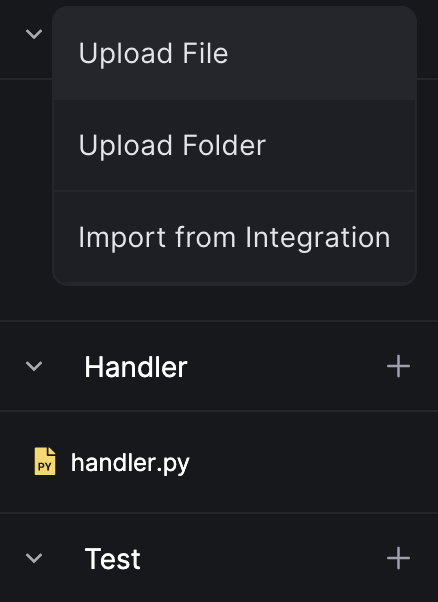
To access your BigQuery database in your project, you must add the integration in the sandbox. In the left-hand side of the sandbox, click the **+** button and select **Import from Integration**.
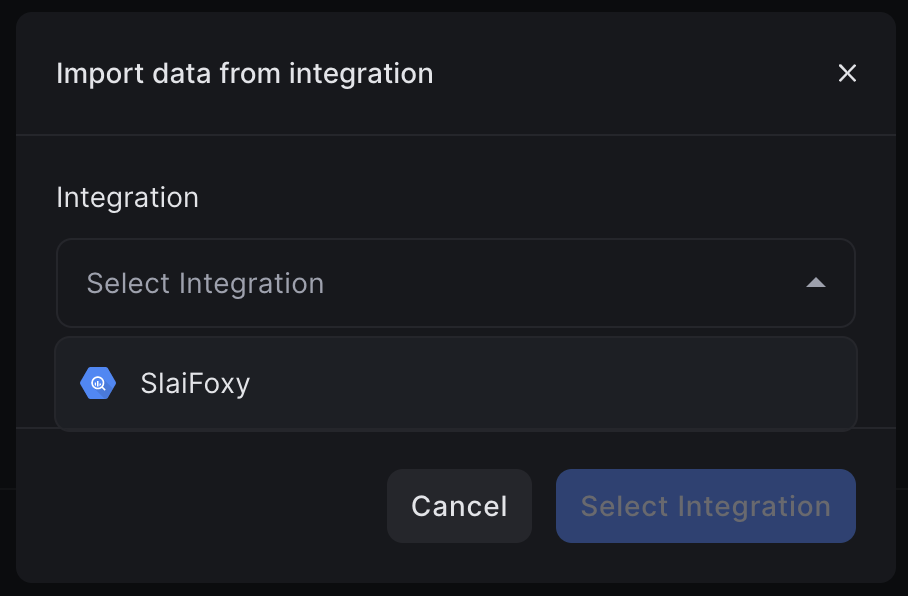
You will be prompted to select an integration, so select your BigQuery integration,
and click **Select Integration**.
Click **Create Connection** to add the integration to your list
## Creating a query in your sandbox
To access your BigQuery database in your project, you must add the integration in the sandbox. In the left-hand side of the sandbox, click the **+** button and select **Import from Integration**.
You will be prompted to select an integration, so select your BigQuery integration,
and click **Select Integration**.
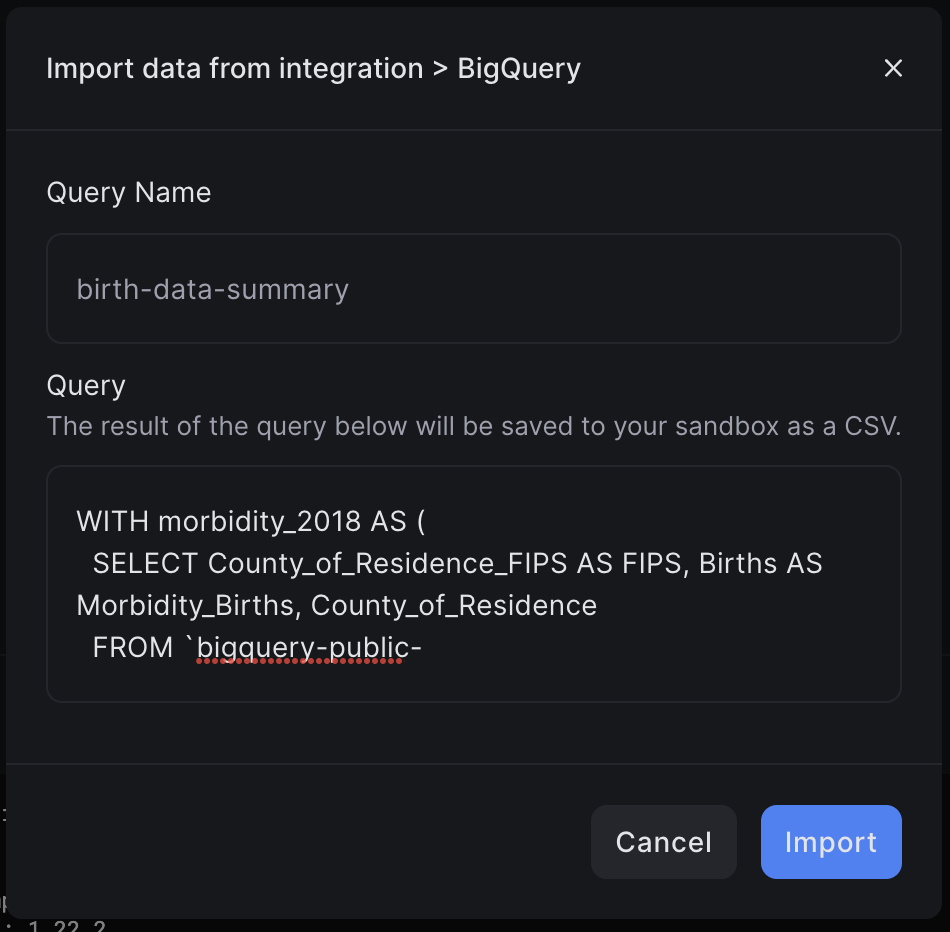
 You will be prompted to enter a **Query Name** (which is how you'll reference the saved query in training) and the **Query** (which is your raw query to the database). Click **Import** to continue.
 Once you import the integration, you will see your **BigQuery** integration appear in your data section. You can add multiple queries from the same integration in your sandbox.
## Using the query data in the sandbox
After the query is attached to your sandbox, it will be stored as a file named `results.csv` that can be accessed like a regular file in your code.
The general file path will look something like `./integrations/bigquery/[query_name]/results.csv`.
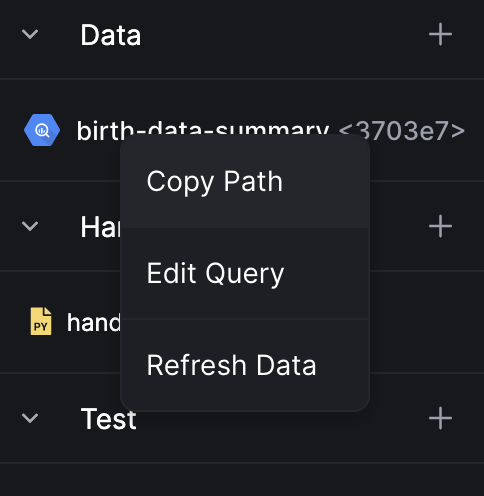
Alternatively, you can copy the path to your clipboard by right-clicking the query and clicking `Copy Path`.
Once you import the integration, you will see your **BigQuery** integration appear in your data section. You can add multiple queries from the same integration in your sandbox.
## Using the query data in the sandbox
After the query is attached to your sandbox, it will be stored as a file named `results.csv` that can be accessed like a regular file in your code.
The general file path will look something like `./integrations/bigquery/[query_name]/results.csv`.
Alternatively, you can copy the path to your clipboard by right-clicking the query and clicking `Copy Path`.